Q.
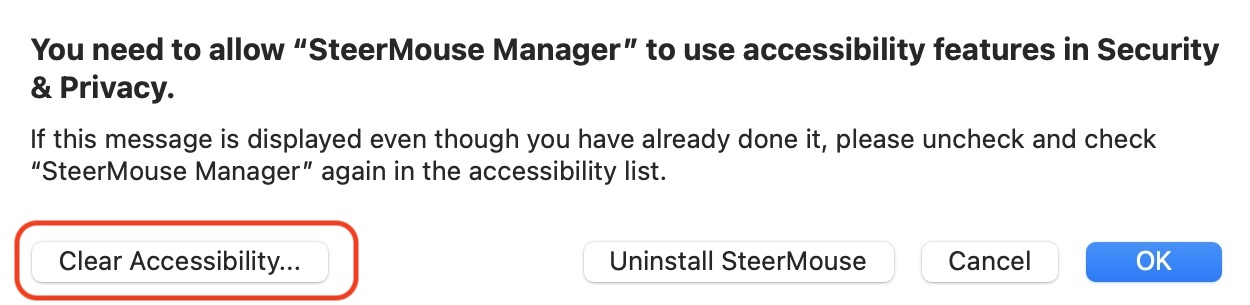
Accessibility warning is displayed even though I have already followed its instructions.
A.
You need to clear Accessibility settings. Please click the "Clear Accessibility" button and follow its message.
Q. Does SteerMouse support Razer mice? A. SteerMouse supports Razer mice that are listed in Recommended mice in the top page and you can customize all buttons on the mice. For other mice that are not listed in the list, there are steps to customize some buttons with SteerMouse. REQUIREMENTS:
|
Q. Accessibility warning is displayed even though I have already followed its instructions. A. You need to clear Accessibility settings. Please click the "Clear Accessibility" button and follow its message.
|
Q. Do you have a compatible mouse list with SteerMouse?
A. No, we do not have. We show mice that have action reports from users on the top page as recommended mice. Maybe this might help you. |
Q. Does SteerMouse include the CursorSense functions? A. No, it does not. CursorSense has these advanced functions. - CursorSense also supports internal trackpads, Apple Magic Mouse and Magic Trackpad. - CursorSense provides 5 favorite settings. - CursorSense shows acceleration curve graphs. |
Q. How to backup/copy my settings? A. The following file is your settings file . Please backup/copy it.
Home/Library/Application Support/SteerMouse & CursorSense/Device.smsetting If you do not see the file, please launch /Applications/Utilities/Terminal.app and enter the following command. You will see the file on Finder.
|
Q. How many computer can I use my licence? A. You can use your license (registration information) on multiple computers if only you are going to use it in your accounts. Please see “Conditions of Registration Information Use” on the Purchase page for details. |
Q. Some keys on the Razer Tartarus V2 do not work because they send a modifier key. A. This problem occurs in macOS Sonoma or earlier. To solve the problem, download this Apple Script file RazerTartarusV2.scpt and double-click it. macOS Sequoia or later does not have this problem.
|
Q. Is there easy way to re-configure the mouse when some buttons do not respond? A. Enter following text in /Applications/Utilities/Script Editor.app and export it as an application. You can double click it to re-configure the mouse. do shell script "osascript -e 'tell app \"SteerMouse Manager\" to quit'" delay 1 do shell script "launchctl kickstart gui/$UID/jp.plentycom.boa.SteerMouse" |